

Developer portal login experience
Walmart Marketplace offers a unified login experience for Marketplace sellers and approved Solution Providers. Sign in with your Walmart account to access the Developer Portal. The navigation options displayed after sign-in depend on your account and organization permissions.
Select Marketplace login
- Go to the Walmart Developer Portal.
- Select Login in the upper-right corner.
- Under Choose your login, select Marketplace login.
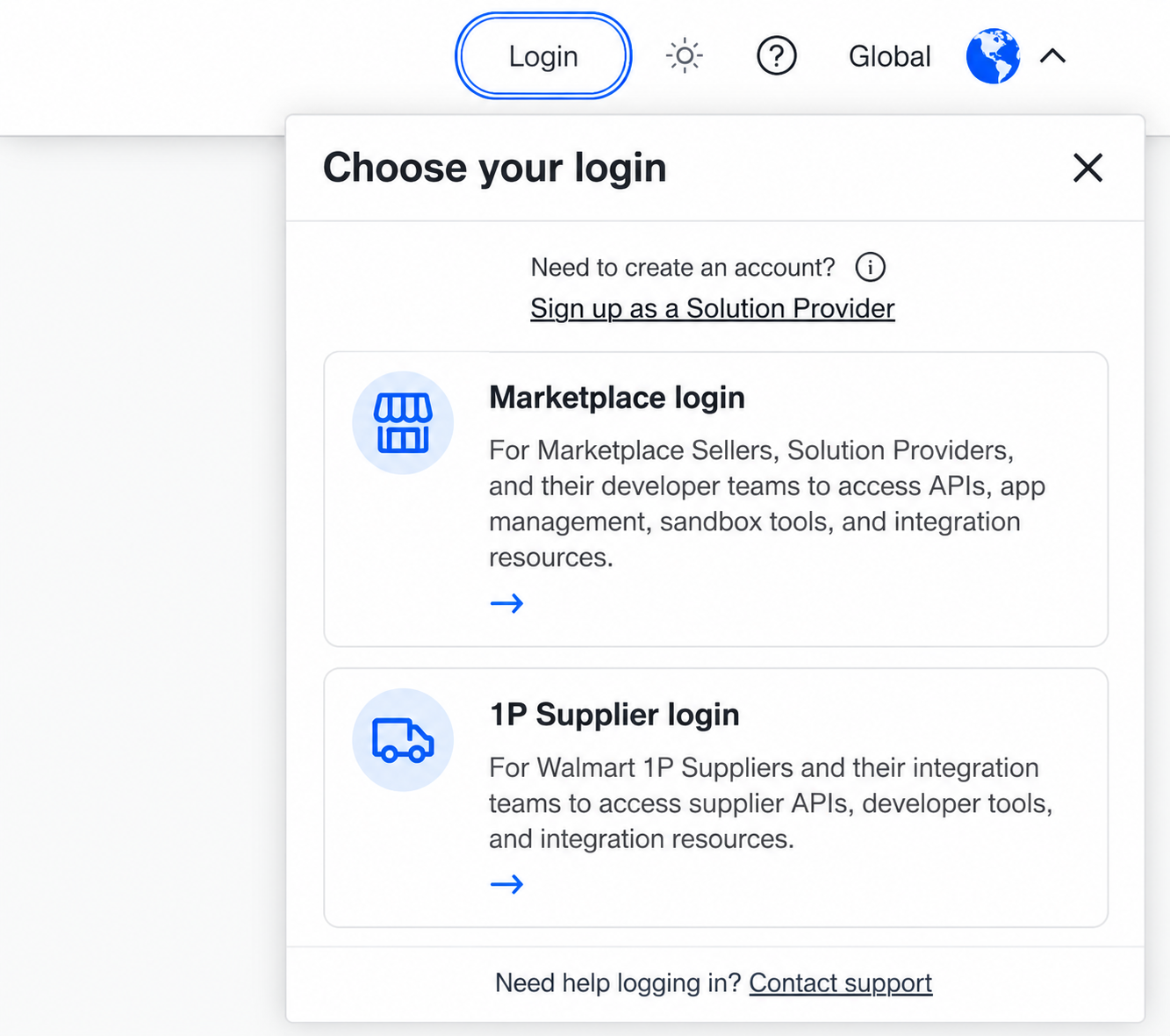
Note: If you want to register your organization as a Solution Provider, select Sign up as a Solution Provider. For registration requirements and next steps, refer to Get started as an approved Solution Provider. Creating a Walmart account does not automatically make you an approved Solution Provider.
Marketplace sellers
If you're a Marketplace seller, use your existing Walmart account to sign in.
- After selecting Marketplace login, enter your email address on the Sign in or create your account page and select Continue.
- Enter your password and complete any required account verification.
- Review and accept the Walmart Developer Terms of Use if prompted.
After signing in, you can access the Developer Portal. The navigation options available to your seller organization include:
- Home: Access your account information and shortcuts to common tasks.
- API Keys: Access your Marketplace API credentials using the Production Keys and Sandbox Keys tabs.
- API Analytics: Review API activity, success trends, and error information.
- API Documentation: Explore Marketplace API guides, authentication resources, API references, and integration recipes.
- Support: Access resources such as API status, error codes, integration FAQs, What's New, and deprecation information.
Navigation options depend on your organization and assigned permissions. If you can't access an expected option, contact your organization's administrator to confirm your permissions. Marketplace sellers don't need to register as approved Solution Providers to access the Developer Portal.
Approved Solution Providers
Approved Solution Providers use the same Marketplace login option. Your first sign-in may require account setup using the welcome email sent after Walmart approves your Solution Provider registration.
Set up your account for the first time
- Open the welcome email from Walmart Marketplace and select Create Password.
- Review and accept the Solution Provider Agreement and Developer Agreement presented during setup.
- Create a password that meets the requirements displayed on the page.
- Complete any required account verification.
If you need another password setup email, use Request new link in the Solution Provider account setup experience and follow the instructions sent to your email address.
After completing onboarding and obtaining the appropriate organization access, you can sign in to Solution Provider Center (SPC). The App listing page opens by default.
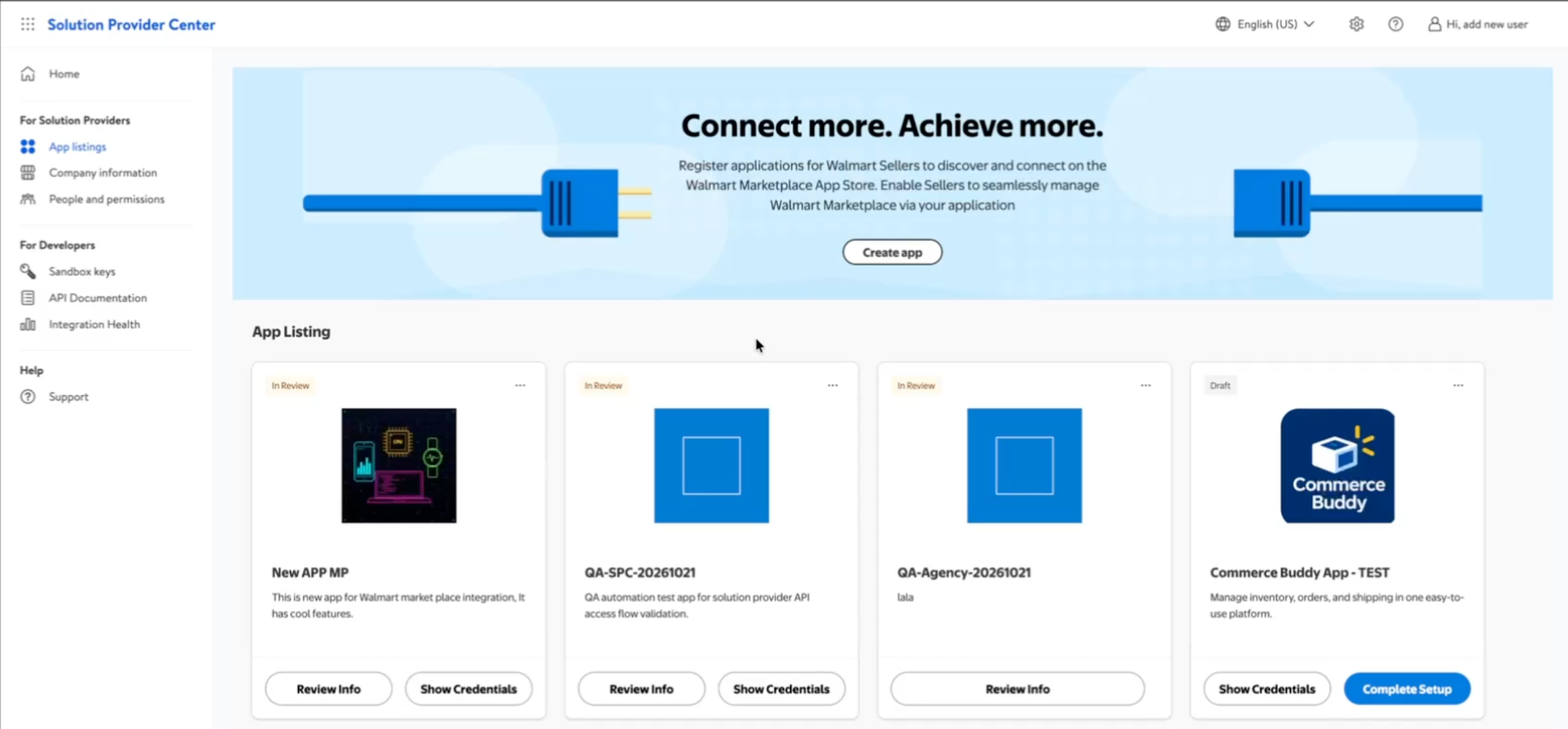
From SPC, you can access App listing, Sandbox credentials, Company information, People and permissions, and Integration Health, depending on your role and permissions.
If your account initially provides only sandbox access, you may need to complete additional onboarding steps to access SPC. For details, refer to Get started as an approved Solution Provider.
Sign in after account setup
- Go to the Walmart Developer Portal and select Login.
- Select Marketplace login.
- Enter your Walmart account email address and password.
- Complete any required verification or agreement acceptance.
Verify your account
When prompted, complete account verification using an available method:
- Email: Receive a verification code at your registered email address.
- Phone: Receive a verification code on your phone, when available.
- Authenticator app: Generate a verification code using an authenticator app.
If you select an authenticator app for the first time, install an app if needed, then scan the displayed QR code or enter the setup key manually. Follow the on-screen instructions to complete verification.
Important: Keep verification codes, passwords, and authenticator setup keys private. Don't include them in screenshots or support requests.
Reset your password or request a new setup link
Reset a forgotten password
If you already have a Walmart account but don't remember your password, select Forgot password? on the Welcome back! page. Follow the instructions to verify your identity and reset your password, then sign in with your updated credentials.
Request a new password setup link
If you're an approved Solution Provider who needs another link for initial account setup, open Request new link from the Solution Provider account setup experience. Enter the email address associated with your account and follow the instructions to request another email. Use the new link to complete password creation.
Troubleshoot sign-in and account access errors
If you encounter an error such as Something went wrong or An unexpected error occurred while signing in, verifying your account, or accessing the Developer Portal:
- Close your browser, open a new browser window, and try signing in again.
- If the issue continues, clear your browser cache and retry, or use a private or incognito window.
- If the issue persists, select Contact support on the error page or submit a support case through the Developer Portal.
When contacting support, describe the issue and the step where it occurred. Do not share passwords, verification codes, or other sensitive credentials.
Updated 16 minutes ago