

Using Walmart Developer Docs MCP to accelerate API integration
Connect your AI-powered coding assistant to Walmart Marketplace APIs using the Model Context Protocol (MCP) server for faster integration development.
Note: The Walmart Developer Docs MCP is currently available to solution > Note: The Walmart Developer Docs MCP is currently available to approved solution providers only, but will soon be available to approved sellers as well.
The Walmart Developer Docs MCP gives your AI-powered coding assistant direct access to Walmart Marketplace API documentation for the US and Global markets. Instead of switching between your coding assistant and the developer portal, you can ask questions, generate code, and debug integration issues — all from within your coding assistant. The source documentation is refreshed daily, ensuring your assistant has access to the latest available documentation.
Note: The market-specific APIs in Canada, Mexico, and Chile will soon be retired. The Global Marketplace APIs support all markets and are the recommended integration path going forward.
What is MCP?
Model Context Protocol (MCP) is an open standard that connects AI assistants to external data sources. When connected to the Walmart Marketplace MCP server, your AI coding assistant can
- Look up endpoint details, required headers, and request/response schemas
- Generate working API call examples in your language of choice
- Help debug authentication errors and validate request payloads against the live schema
- Walk you through multi-step workflows such as listing items or fulfilling orders
Prerequisites
Before setting up the MCP server, ensure you have:
- A supported AI coding assistant — VS Code, Codex, Cursor, or Claude Desktop
- An active Marketplace developer or seller account — required to make live API calls
Note: The MCP server provides access to API documentation and schemas. To execute actual API calls, you will still need valid credentials. Refer to the Introduction to Walmart Marketplace APIs for more information.
Connect to Walmart Developer Docs MCP
Install in VS Code
Use either of these two options to install the Walmart Marketplace MCP in your VS Code.
Option A: Workspace-level setup
Add this to your .vscode/mcp.json file in your workspace:
{ "servers": { "walmart-marketplace": { "type": "http", "url": "https://developer.walmart.com/mcp" } }
}
Option B: User-level setup (available in all workspaces)
- Open the Command Palette (
Ctrl+Shift+P/Cmd+Shift+P) - Search for "MCP: Add Server"
- Enter the server URL:
https://developer.walmart.com/mcp - Name the server:
walmart-marketplace
To learn more, refer to the VS Code MCP documentation.
Install in Cursor
Cursor supports MCP servers through its built-in AI assistant.
Option A: Workspace-level setup — add to ~/.cursor/mcp.json:
{ "servers": { "walmart-marketplace": { "type": "http", "url": "https://developer.walmart.com/mcp" } }
}
Option B: Global setup — open Cursor Settings → MCP → "Add new global MCP server" and paste the same configuration block.
To learn more, refer to the Cursor MCP documentation.
To add MCP to Claude Code, run the following commands:
claude mcp add --transport http walmart-marketplace https://developer.walmart.com/mcp
claude mcp login walmart-marketplace
To learn more, refer to the Claude Code documentation. (or alternatively) open claude code + /mcp + authenticate from there
You can enable MCP servers in Codex if you have a ChatGPT Pro, Plus, Business, Enterprise, or Education account. Follow the OpenAI documentation for instructions.
To add MCP to Codex, run the following commands:
codex mcp add walmart --url https://developer.walmart.com/mcp
codex mcp login walmart
Walmart Marketplace MCP server also works with the OpenAI Responses API when building autonomous agents. (optional, if the page wasn't auto opened)
Available MCP tools
The Walmart Marketplace Developer Docs MCP equips your AI assistant with five specialized tools for discovery, schema inspection, and seamless API integration across Walmart's marketplace ecosystem.
| Tool | Purpose | What it helps your AI do |
|---|---|---|
list_marketplace_api_specs | Lists all API specifications for a specified market | Discover which API sets (e.g., US, Global, Inventory, Orders) are available for your target market. |
search_marketplace_apis | Searches operations and schemas within a specific API specification | Quickly locate endpoints, objects, and attributes without manual browsing. |
list_api_operations | Filters operations by method, tags, or market criteria | Narrow down endpoints relevant to your exact task (e.g., GET methods for orders). |
get_operation_spec | Returns detailed schema for a specific API operation | Inspect exact parameter requirements, payload schemas, and response formats. |
get_auth_requirements | Provides authentication requirements and security schemes | Retrieve required auth headers, token endpoints, and signature specifications. |
Your AI assistant detects and surfaces these tools automatically once connected. If you are building a custom MCP client or verifying tool availability directly, send a tools/list request with your access token
Security best practice: Use restricted API keys scoped only to the permissions your agent requires. Never embed production credentials in source code — use environment variables or a secrets manager.
The MCP server is compatible with any MCP-capable agent framework, including the OpenAI Responses API and Anthropic Claude.
Authenticate and connect your AI coding assistant
Once you are set up in your AI coding assistant, you will need to authenticate through an external web page.
-
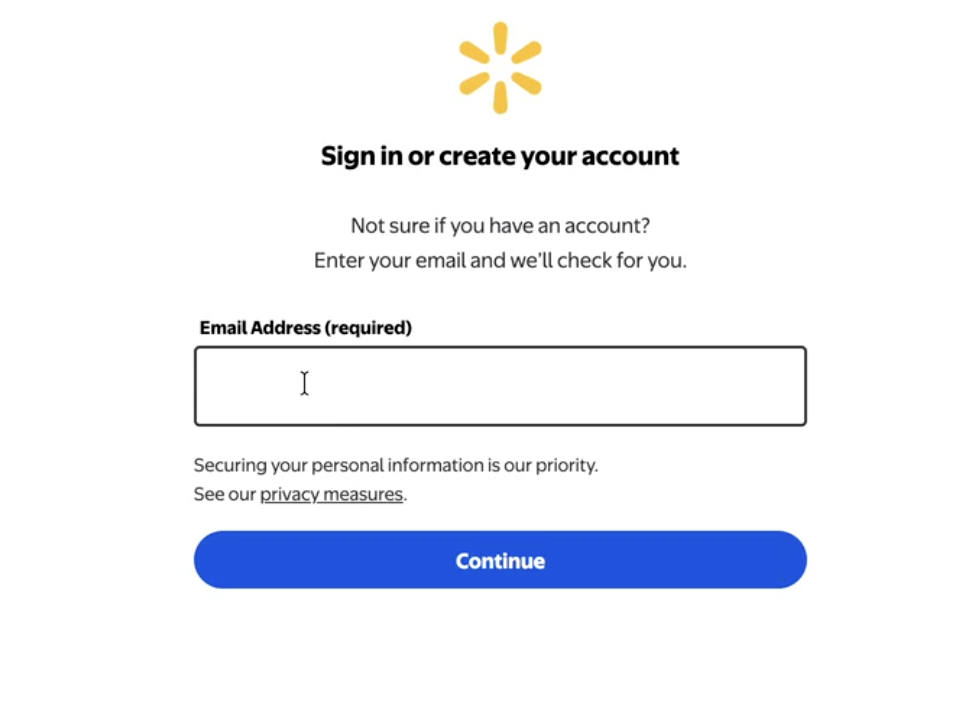
In your AI coding assistant, select the Walmart Marketplace MCP server and select Connect. This will open an external sign-in page in your web browser.
-
Enter your email address and then select the Continue button.
-
Enter your password and then select the Sign In button.
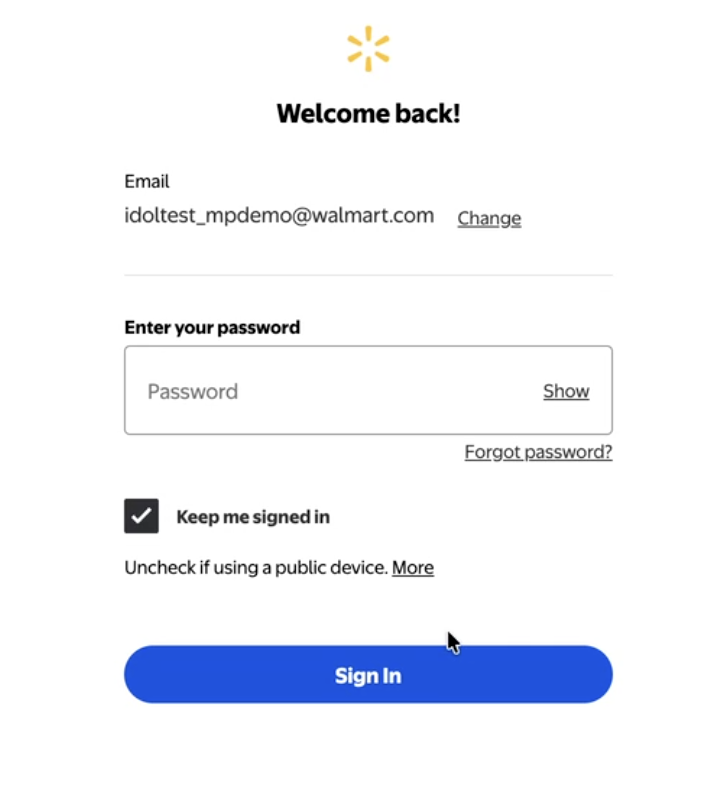
After successfully entering your credentials, the sign-in page will automatically close, and you will be redirected back to your AI coding assistant.
Once you return to your AI coding assistant, verify the MCP server is connected by entering a prompt to ensure you receive a response:
@walmart-marketplace How do I authenticate with the Walmart Marketplace API?
Use case 1: Setting up API authorization
Business scenario
A new seller wants to connect their order management system to Walmart Marketplace to retrieve orders automatically, update inventory and pricing, and ship orders programmatically. Before making any API calls, the seller must authenticate with Walmart's APIs.
Goal
Enable secure API access using Walmart's authentication model so the seller can make successful API calls.
Use case 1: Step-by-step workflow
Read through the step-by-step workflow and use the suggested prompt in each step.
Step 1: Obtain API credentials: Retrieve your Client ID and Client Secret from the Walmart Developer Portal.
Sandbox first: Use your sandbox credentials to test against
https://sandbox.walmartapis.combefore switching to production. Sandbox credentials are separate from production credentials and are available from the Developer Portal.
Step 2: Generate an access token: Walmart uses OAuth 2.0 client credentials for authentication. Request an access token using your Client ID and Client Secret.
Prompt: Show me how to generate an OAuth access token for the Walmart Marketplace API. Include the token endpoint, required headers, and a sample cURL command.
Token behavior:
- Access tokens expire after 15 minutes
- There is no refresh token — request a new token when the current one expires
- Build token caching into your integration to avoid unnecessary round trips
Step 3: Send an authenticated request and validate your setup
Each API request must include these headers:
| Header | Description |
|---|---|
WM_SEC.ACCESS_TOKEN | OAuth access token from Step 2 |
WM_CONSUMER.CHANNEL.TYPE | A unique ID to track the consumer request by channel. |
WM_QOS.CORRELATION_ID | Unique request identifier (UUID) for tracing |
WM_SVC.NAME | Name of the Walmart service being called |
Content-Type | application/json |
Accept | application/json |
Prompt: Generate a Python 3 script to request a Walmart Marketplace access token using my Client ID and Client Secret, then call
GET /v3/orderswith all required headers. Print the response body and handle401 Unauthorized,403 Forbidden, andINVALID_TOKENerrors.
If the script returns a valid orders response, your authentication setup is complete.
| Error | Cause | Fix |
|---|---|---|
401 Unauthorized | Invalid or expired token | Regenerate access token |
403 Forbidden | Insufficient permissions | Check API key scopes |
INVALID_TOKEN | Malformed token header | Verify header format |
Use case 1: Success criteria
- Access token generated successfully
- Test API call returns a valid response
- No authentication errors
Use case 2: Listing a new item for sale
Business scenario
A seller wants to list a new product (for example, a wireless keyboard) and make it buyable on Walmart Marketplace. This requires a sequence of API calls.
Goal
Successfully publish a new, buyable item via API.
Use case 2: Step-by-step workflow
Step 1: Retrieve category requirements: Before listing, determine what attributes are required for your product category.
Prompt: How do I retrieve the required attributes for the Electronics Accessories category before creating an item?
Step 2: Create the item
Prompt: Generate a complete item creation payload for a wireless keyboard in the Electronics Accessories category. Include all required fields.
Step 3: Set the price
Prompt: Show the API call to set the price for SKU
WK-123at $29.99 USD.
Step 4: Update inventory: An item must have available inventory to become buyable.
Prompt: Update inventory for SKU
WK-123with a quantity of 250.
Step 5: Verify publish status
Prompt: How do I check whether SKU
WK-123is published and buyable?
Note: After submitting an item and updating its price and inventory, allow time for the changes to be processed and reflected on Walmart.com. An item may have a
PUBLISHEDstatus before it becomes visible and buyable. Verify the item's publication status, active price, and available inventory before troubleshooting.
API call sequence
GET /v3/items/spec-> Retrieve category schemaPOST /v3/feeds (items)-> Create itemPOST /v3/feeds (price)-> Set pricePUT /v3/inventory-> Update inventoryGET /v3/items/{sku}-> Check publish status
Use case 2: Common errors
| Error | Cause | Fix |
|---|---|---|
| Missing attributes | Required category fields omitted | Check schema from Step 1 |
| Image URL invalid | URL not publicly accessible or wrong format | Use HTTPS URLs to hosted images |
| Price out of range | Below minimum or above maximum | Check category price rules |
| Item not buyable | Inventory is 0 | Complete Step 4 |
| GTIN validation | Invalid UPC/EAN format | Verify check digit |
Use case 2: Success criteria
- Item status =
PUBLISHED - Inventory > 0
- Price is active
- Item is visible and buyable on Walmart.com
Troubleshooting
VS Code
If attempting to authenticate the MCP server in VS Code and the authentication popup does not display, click Settings and then click the Start server button.
Additional resources
Updated about 8 hours ago